Cyanview RCP
Intro
You can control our cameras simply using our free software
But if you need a RCP, we recommand Cyanview
Cyanview is a universal RCP, multi brand, multi model.
A single RCP can control up to 100 cameras (mixing models/brands).
Over various links:
- Ethernet
- Fiber
- RF
- 4G
They offer a normal model and a joystick version.
Both models work well with our cameras, so pick the one that fits your workflow and budget (the joystick version is the pricier option). The joystick is not required for zoom cameras: iris control works fine on the normal model.
On the RCP, the T-bar controls iris on zoom cameras and gain on the other models.
Both versions can be fitted in a desk to match a standard Sony RCP size.


Controls
| Proton cams | |
|---|---|
| White Balance (R/G/B and Color temp.) | ✔ |
| Exposure (Gain and Shutter) | ✔ |
| Master Black and Black Balance (R/G) | ✔ |
| Detail level and crispening | ✔ |
| User Matrix | ✔ |
| Multi Matrix | ✔ |
| Knee | ✔ |
| Saturation | ✔ |
| Master Gamma | ✔ |
| OETF (SDR/HLG/PQ/S-Log3) | ✔ |
| Color space (709, 2020) | ✔ |
| Formats (1080i 50/59/60, 1080p 23/24/25/29/30/50/59/60) | ✔ |
| AUTO (AWB, ATW, Gain, Shutter) | ✔ |
| RED tally | ✔ |
Here is a GIF showing all accessible menus:

Wiring
You have two ways to connect the camera to a cyanview RCP:
- using CI0 : easy, flexible/extendable, plug and play, IP, additional cost
- using PIO : easy, plug and play, USB/Serial, cheaper
- using PIO-E : easy, plug and play, PoE, cheaper/smaller than CI0
Rule of tumb is:
- chose CI0 if budget is not an issue
- chose CI0 if you're planning to control different cameras model/types
- chose CI0 if you already have Ethernet/Fiber
- chose PIO if you're OK with USB and extend the serial cable
- chose PIO if you already have serial/power link to your camera location
- chose PIO-E if you have PoE and want something small for your proton cam and cyanview workflow
RCP PIO E
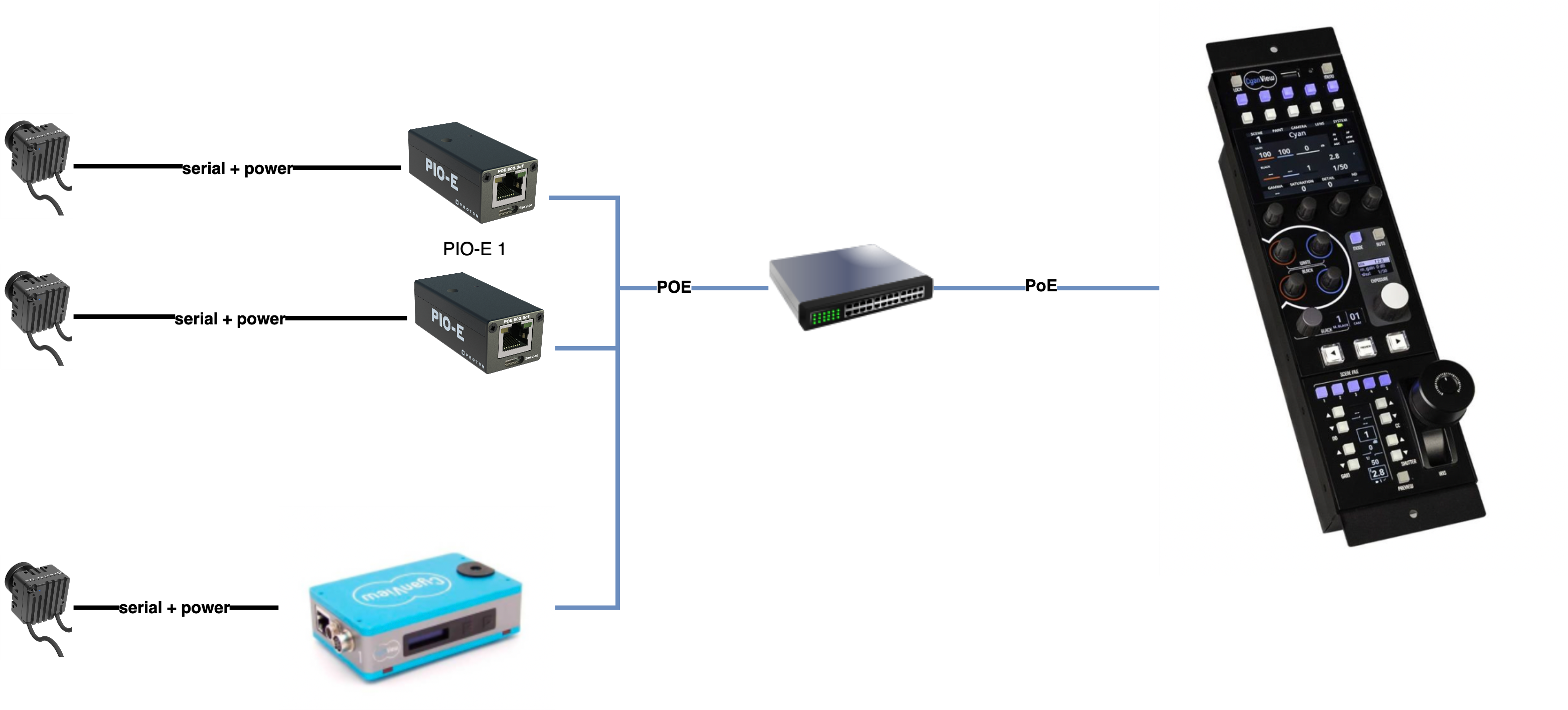
- Proton camera is plugged direclty on PIO-E
- The PIO-E provides: data + power to the camera (max 12V 1A 12W)
- The PIO-E is powered through PoE
- The RCP can be powered by PoE or 12V (PSU or D-Tap)
- The RCP and PIO-E communicate over Ethernet
RCP CI0

- Proton camera is plugged directly on CI0
- The CI0 provides: data + power to the camera
- The CI0 can be powered by PoE or 12V (PSU or D-Tap)
- The RCP can be powered by PoE or 12V (PSU or D-Tap)
- CI0 and RCP communicate over IP (including Ethernet, Fiber, etc.)
One CI0 has 2 serial port by default. So you can plug 2 cameras on a single CI0 with standard cables. You can even use a single CI0 port to control a camera "bus". In this case, each camera has it's own ID, and this will requires custom cables on your side.
RCP PIO

- Proton camera is plugged direclty on PIO
- The PIO provides: data + power to the camera
- The PIO can be powered by USB (requires stable 5V and 1A) or external 12V
- The RCP can be powered by PoE or 12V (PSU or D-Tap)
- The RCP and PIO communicate over USB
If you want to:
- plug multiple camera : you could use a powered USB HUB
- control camera further: you can extend the serial cable with straight 6P hirose
Setup
| RCP/CI0 | USB | |
|---|---|---|
| Setup |  |  |
| Status |  |  |
- Create a new camera by clicking on
+ - Enter a
Number(this will order the camera) - Enter a
Name(this will be visible in web UI and RCP) - In
Camera Headsection:- Select
Protonfor theBrand - Select
Proton CAMfor theModel(Proton CAM, Flex, Rain shares the same control) - Select the USB port or CI0 serial/port in
Interface: Port
- Select
After a couple of seconds (< 30s), it should turns green, meaning you have a bidirectional control.
Don't change anything else here:
- Resolution : changed using RCP itself
- Frequency : changed using RCP itself
- Lens : controlled through the camera itself
FAQ
How to change the format?
- Long press on RCP MENU
- Navigate using the touchscreen to
CAMERA > FORMAT - Turn the first knob to change the format
- Once selected, wait 3sec
- The camera will reboot in the selected format

You can chose between:
- 1080i50
- 1080i59
- 1080i60
- 1080p23
- 1080p24
- 1080p25
- 1080p29
- 1080p30
- 1080p50
- 1080p59
- 1080p60
How to flip horizontal or vertical
- Long press on RCP MENU
- Navigate using the touchscreen to
CAMERA > LENS - Navigate to
PTZF - Select the second tab:
Settings - You can flip horizontally by toggling
Horizontal - You can flip vertically by toggling
Vertical - They can be combined

My camera stays RED on the RCP
If you have one on hand, plug the camera on your computer using the PIO
You can try:
-
Unplug and replug the camera in the CI0
-
Check the CI0 power supply (PoE or PSU or D-TAP), display should be ON
-
Check in the RCP web UI, in diagnostic that the CI0 is visible in the list
-
Check in the RCP web UI, in diagnostic that the CI0 is associated with your RCP and not another one
-
Check on the CI0 if the display is ON:
- it should display
<-> - and your camera number (from the RCP config)
- in big/bold
- if it's something else (
X,<>,NO ETH,<->with small number), you have an issue
- it should display
-
Update the RCP to the latest version using a SWU
-
Update the Proton cam using the Proton Updater
-
Re do the configuration from scratch
-
This will ensure:
- the camera and the RCP are in sync
- the RCP is properly configured and no issue from previous tests
At the end, if everything went well:
- CI0 should display your camera number in bold/big
- RCP should display your camera in green (both on RCP and RCP web UI)
- You should have bidirectional control of the camera
Control a camera bus
Sometime you have a single CI0/RIO port and you need to control multiple cameras on it.
Proton cameras are identified by:
- unique camera ID (to control one camera at a time, individually)
- a group ID (to control a group of camera, applying the same settings to everybody, requires a unique "master" in the group/bus)
By default, when you configure your proton cam, cyanview use the id 100 which is our broadcast id. This works if you only have 1 camera per port.
The first step is to check (and change if needed your camera id and/or group using the proton control software):
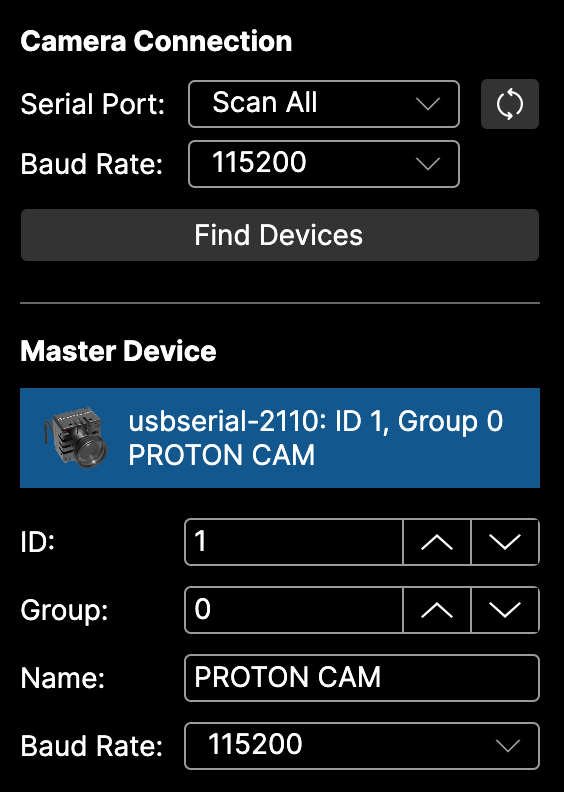
Here, my camera:
- cam ID 1
- group ID 0
- master of the group
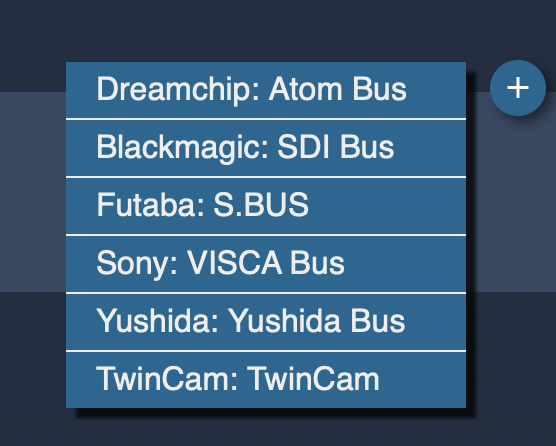
In your cyanview RCP, create the bus:
- In the
web UI - In
Configurationtab - In
Featureblock - Click on
+and selectDreamchip bus
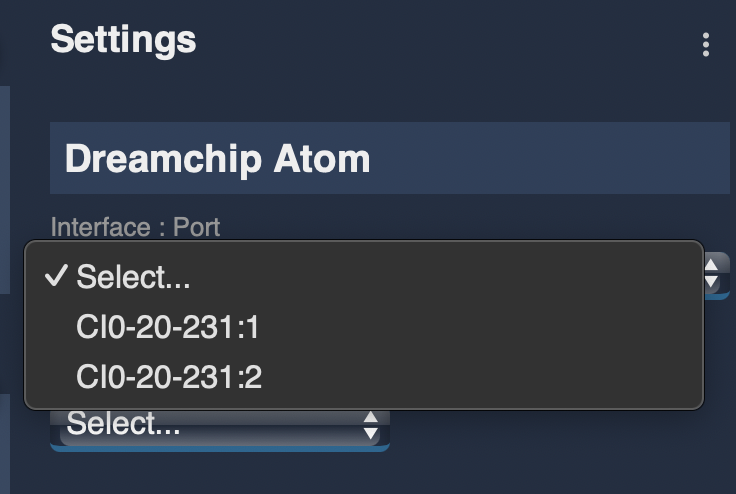
Then, you need to select on which CI0/port your bus is plugged in (in my case CI0-20-231, port 1) :
And configure the range of ID present on this bus (0-5 in my case):
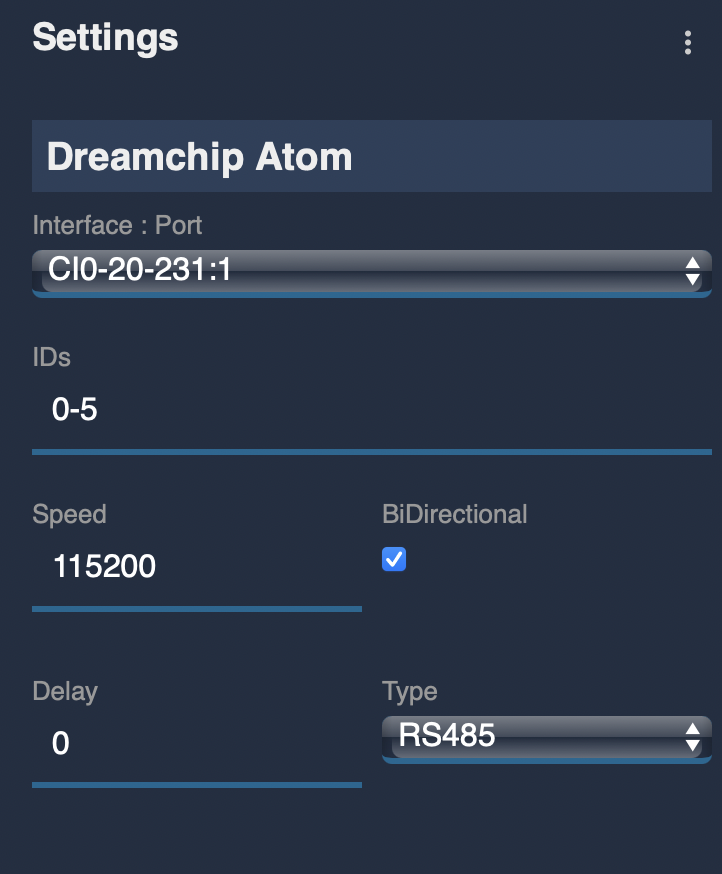
And now, you can configure your camera as usual, and instead of selecting the CI0/port as usual (which would use the broadcast id 100), you use your bus ID instead.
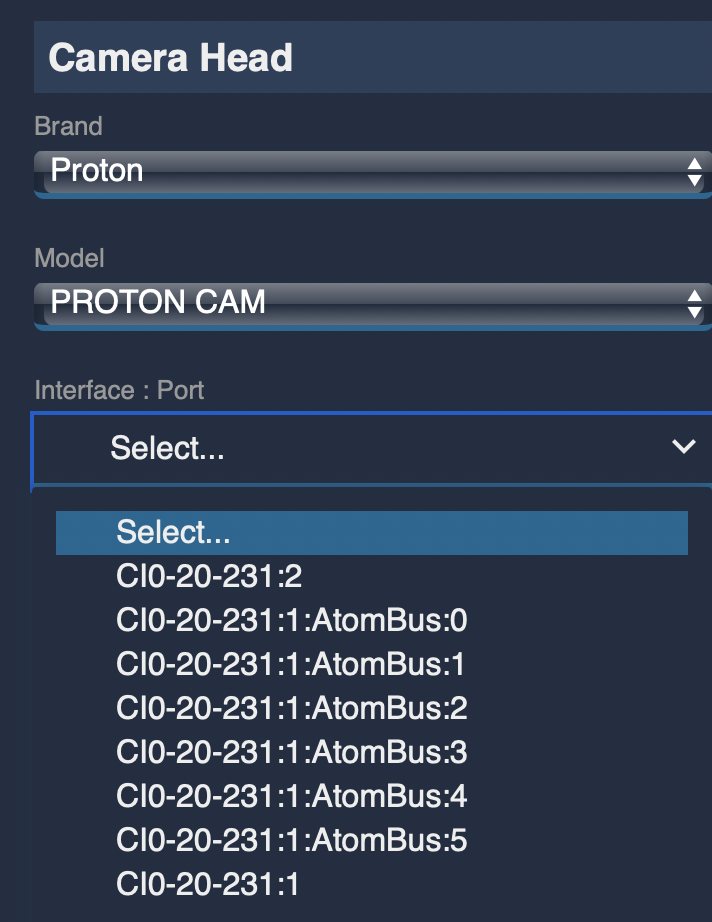
And if everything went well, it should turn green within 30s:
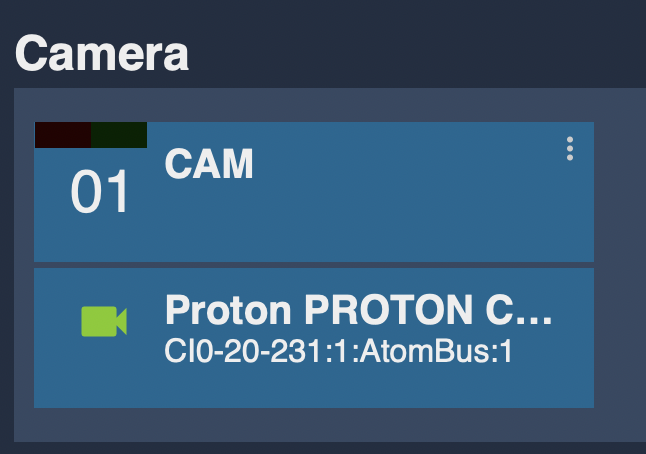
In this case, i'm controlling camera ID 1 on my bus. You could:
- Create other cameras, using the same bus, but different ID's.
- Have multiple bus on different CI0 ports (here i could have a bus on port 1 and another on port 2) or different CI0.
- Control a single camera (using the cam id,
1in my case), controlling multiple cameras (using the bus ID,0in my case).
Here, we're only explaining the setup. Pay attention to wiring, especially power:
- when using PoE, CI0 is regulating voltage at 12V, but is limited at 1A per port.
- when using external power supply, CI0 is not regulating voltage (so ensure it match both CI0 and camera range). But it allows you to then (with a proper power supply), have a camera drawing more than 12W.
You could also provide power to the camera bus yourself without using the CI0 power, just keeping CI0 for serial/telemetry/control.